When you switch to a new iPhone, you probably want your WhatsApp chats to move with you. Your messages, photos, and voice notes are part of your daily conversations. Losing them can be frustrating.
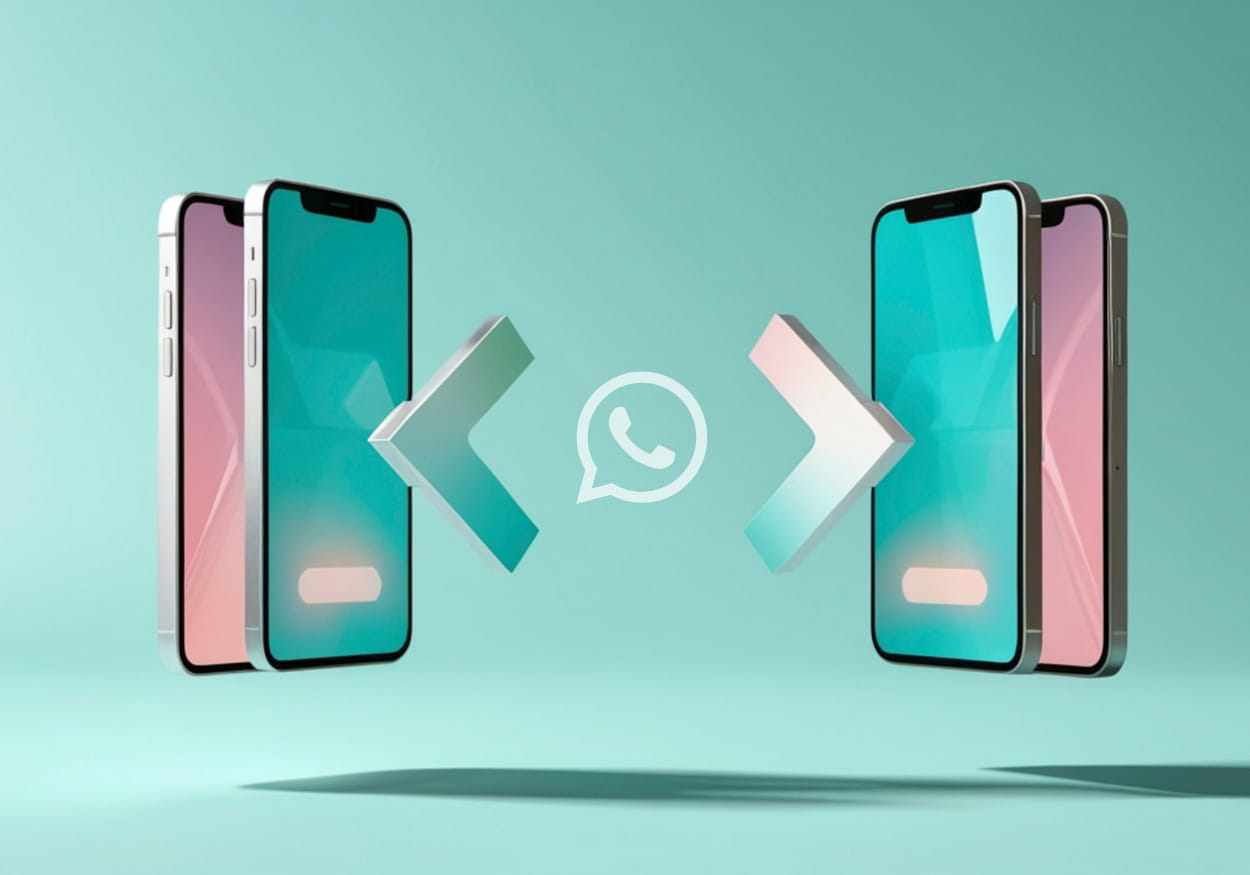
The good news is that WhatsApp makes it easy to transfer chats from one iPhone to another. You can do this using iCloud backup or the built-in chat transfer feature.
Here are the simple ways to move WhatsApp from iPhone to iPhone.
Method 1: Transfer WhatsApp Using iCloud Backup
This is the most common way to move WhatsApp chats to a new iPhone.
Step 1: Back Up WhatsApp on Your Old iPhone
First, create a backup of your chats.
- Open WhatsApp on your old iPhone
- Tap Settings
- Tap Chats
- Tap Chat Backup
- Tap Back Up Now
Wait until the backup finishes. Make sure your phone stays connected to Wi-Fi.
Step 2: Install WhatsApp on the New iPhone
Now set up WhatsApp on your new phone.
- Download WhatsApp from the App Store
- Open the app
- Verify your phone number
Make sure you use the same phone number as before.
Step 3: Restore the Chat Backup
After verification, WhatsApp will detect your iCloud backup.
- Tap Restore Chat History
- Wait for the restore process to finish
Once it completes, your chats will appear on the new iPhone.
Method 2: Transfer WhatsApp Using the Chat Transfer Feature
WhatsApp also has a direct chat transfer option between iPhones. This method moves chats directly without using iCloud.
Step 1: Prepare Both iPhones
Before starting, check these things:
- Both phones are connected to Wi-Fi
- Bluetooth is turned on
- Both devices are near each other
Step 2: Start the Transfer
On your old iPhone:
- Open WhatsApp
- Go to Settings
- Tap Chats
- Tap Transfer Chats to iPhone
- Tap Start
Step 3: Scan the QR Code
On the new iPhone:
- Install and open WhatsApp
- Verify your phone number
- A QR code will appear
Use your old iPhone to scan the QR code. The transfer will begin automatically.
Keep both phones close until the process finishes.
Things to Check Before Transferring WhatsApp
If the transfer doesn’t work, check these common issues.
Make sure:
- Both iPhones use the same phone number
- You are signed in to the same Apple ID if using iCloud
- Your iCloud storage has space
- Your internet connection is stable
Updating WhatsApp to the latest version can also help.
Wrap Up
Moving WhatsApp from one iPhone to another is simple once you know the steps. You can restore chats from an iCloud backup or transfer them directly between devices.
If you want the easiest method, use iCloud backup. If you prefer a direct transfer without storage limits, use the chat transfer feature.
Either way, your messages and media will move safely to your new iPhone.