
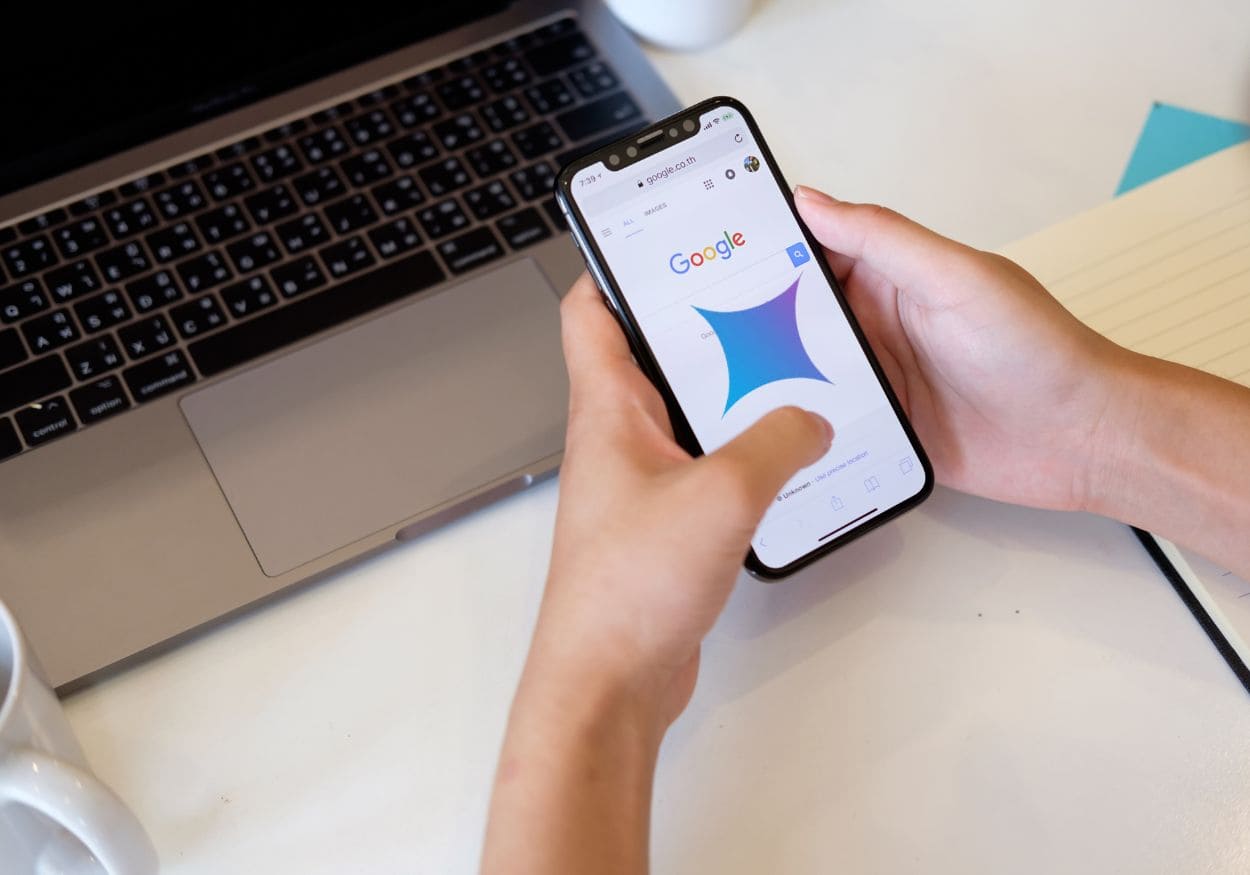
Google’s Gemini AI is starting to appear across many Google apps. Some people like the AI features. Others find them distracting or unnecessary.
If you use Google apps on an iPhone, you might notice Gemini suggestions, summaries, or AI tools. The good news is you can limit or turn off most of these features.
Here’s how to do it.
What Gemini Does on iPhone
Google Gemini is Google’s AI assistant. It replaces many older Google Assistant features and adds AI tools inside Google apps.
On an iPhone, Gemini can show up in places like:
- the Google app
- Google Search
- Gmail
- Google Docs
- other Google services
You may see AI summaries, suggested replies, or chat-style help.
If you prefer a simple experience, you can turn off most Gemini features.
Turn Off Gemini in the Google App
If you’re using Gemini through the Google app, this is the first place to check.
- Open the Google app on your iPhone.
- Tap your profile icon in the top right corner.
- Tap Settings.
- Open Gemini or AI Features.
- Turn off the Gemini toggle.
After you switch it off, the app will stop showing most Gemini tools.
Disable Gemini Activity in Your Google Account
Even if Gemini is turned off in the app, Google may still save activity.
You can disable that.
- Go to your Google Account settings.
- Tap Data & Privacy.
- Find Gemini Apps Activity.
- Turn the setting off.
This stops Google from saving Gemini conversations and activity.
Turn Off AI Features in Gmail and Other Apps
Some Google apps add Gemini features automatically.
For example, Gmail may show AI writing help.
Open the app settings and look for options like:
- Smart features
- AI assistance
- Help me write
Turn these features off to reduce Gemini suggestions.
Remove the Gemini App (If Installed)
If you installed the standalone Gemini app, you can simply delete it.
- Press and hold the Gemini app icon.
- Tap Remove App.
- Tap Delete App.
This removes Gemini from your iPhone.
Can You Completely Remove Gemini?
Not always.
Google is slowly adding Gemini to its services. In some cases, the AI features are built into the app and can’t be fully removed.
But turning off Gemini settings and AI features will stop most of it.
Your apps will work the same. They just won’t show AI suggestions.
The Bottom Line
Gemini can be useful, but it’s not for everyone. If you prefer a simpler experience, turning it off only takes a minute.
Check the Google app settings first, then review your Google account’s AI settings. Once you disable those options, Gemini will stop appearing in most places on your iPhone.
And if you change your mind later, you can turn it back on anytime.